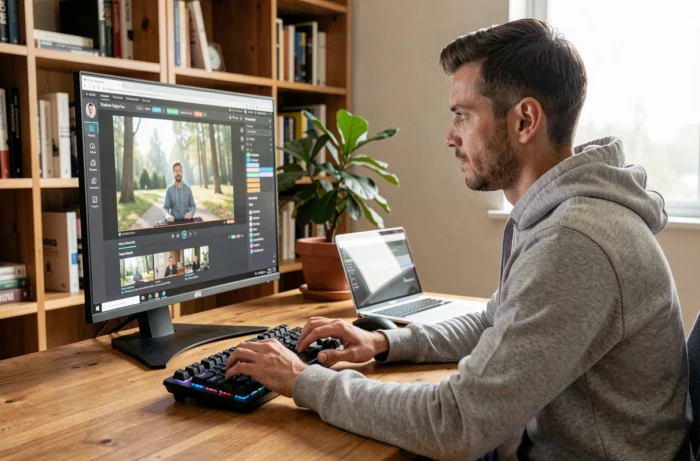
Capturing a live or on-demand video stream from the web involves recording what is displayed on the screen, including both image and sound, and then storing the result in a local file. The technique relies on screen capture software or, in some cases, a built-in function of the operating system. Before starting any recording, a step that is often overlooked deserves full attention: checking what the law actually allows.
Private Copying and DRM: What to Check Before Capturing a Video Stream
In France, the private copying exception allows for the reproduction of a work for strictly personal use. However, this exception assumes that the source of the stream is lawful. Recording a video broadcast on a pirate platform does not fall under this framework, even if the recording remains on a personal hard drive.
Paid streaming platforms apply digital protections (DRM) to their content. Specifically, a recording may produce a completely black video while the sound is sometimes retained. This is not a bug in the capture software: it is the expected behavior when the browser or system blocks the protected video output.
The result depends on the combination of browser, operating system, and platform. The same capture tool may work on an online course site and fail on a protected video-on-demand service. Testing before starting a long recording avoids ending up with an unusable file.
To better understand the available options and record or capture a streaming video under good conditions, it is useful to distinguish between two main families of tools: screen capture software and browser extensions.

Screen Capture with Dedicated Software: OBS Studio and Alternatives
Screen capture software records everything that appears in a defined area of the display. The produced file contains both video and audio from the system, which is suitable for saving a webinar, an online course, or a live event not protected by DRM.
OBS Studio: The Free Reference Choice
OBS Studio is free software available on Windows, macOS, and Linux. It allows you to configure scenes (capture areas), choose the encoding codec, and select the audio source separately. The interface requires a few minutes to get used to, but the basic procedure remains accessible:
- Create a scene, then add a source of type “Screen Capture” or “Window Capture” to target the browser where the video stream is being played.
- In the audio settings, enable the capture of desktop sound (and not the microphone, unless specifically needed) to capture the audio track of the stream.
- Choose the output format (MKV recommended to avoid loss in case of abrupt shutdown, which can then be converted to MP4 from OBS) and start the recording.
A point of caution concerns the compatibility between OBS and the operating system. Recent versions of OBS may no longer work on older versions of macOS after an update to the Qt library used by the software. Checking the project’s download page to identify the version suitable for your system avoids crashes at launch.
Lightweight Alternatives to OBS
OBS is suitable for users who want control. For a one-time recording without configuration, other solutions exist. On Windows, the built-in Xbox Game Bar tool (accessible via the Win + G combination) captures the active window with sound. On macOS, the Cmd + Shift + 5 combination opens a native video screen capture panel.
These built-in tools are sufficient for a quick recording, but they offer little adjustment on resolution, codec, or audio management. For a long stream or specific quality, dedicated software remains preferable.

Browser Extension or Direct Download: Two Distinct Approaches
Some browser extensions offer to capture the active tab, including video and audio. The advantage: no heavy installation, the capture starts from the browser itself. The downside: the quality depends on the resolution of the tab, and DRM applies in the same way as for desktop software.
Direct downloading is another approach. Online tools or extensions attempt to extract the source video file rather than recording the screen. This method generally produces better quality (no re-encoding), but it only works on unprotected streams. On platforms that encrypt their videos, direct downloading fails or only retrieves a fragment.
The choice between these two approaches depends on the type of content targeted:
- An online course hosted on a university site or an open platform often lends itself to direct downloading, as the stream is not encrypted.
- A live event on a social network is better captured by screen recording, as the stream is ephemeral and rarely downloadable.
- Content protected by DRM on a paid platform resists both methods in most configurations.
Audio Settings and Output Format: Common Mistakes
Video recording often results in a silent or out-of-sync file. The most common cause: the software captures sound from the microphone instead of system sound. In OBS, the “Desktop Audio” source must be enabled. In Xbox Game Bar, the setting is found in the capture settings, audio section.
The file format is also important. An abruptly interrupted recording in MP4 (software closure, power outage) produces a corrupted and unreadable file. Recording first in MKV and then converting to MP4 protects against this risk, as the MKV container tolerates interruptions.
The capture resolution must match that of the stream. Capturing a stream broadcast in 720p with a capture area in 1080p will not produce a better image, but a larger file without a gain in sharpness. Adapting the capture area to the actual size of the video played in the browser optimizes the quality/size ratio of the file.
Recording a streaming video remains an accessible operation with the tools available for free on each operating system. The difficulty lies less in the technical manipulation than in the prior verification: lawful source, absence of active DRM protection, and proper audio configuration. A test of a few seconds before a long recording allows for spotting a black screen or missing sound and adjusting the settings before wasting time.